

Chiluverichethankumar
2 months ago
Chapter 1: Create your first app
In this chapter, learn how to create a new Expo project.
Initialize a new Expo app
We’ll use create-expo-app to initialize a new Expo app. It is a command-line tool to create a new React Native project. Run the following command in your terminal:
> Terminal
> npx create-expo-app@latest StickerSmash
> cd StickerSmash
This command will create a new project directory named StickerSmash, using the default template. This template has essential boilerplate code and libraries needed to build our app, including Expo Router. We’ll continue to add more libraries throughout this tutorial as needed.
Benefits of using the default template
- Creates a new React Native project with expo package installed
- Includes recommended tools such as Expo CLI
- Includes a tab navigator from Expo Router to provide a basic navigation system
- Automatically configured to run a project on multiple platforms: Android, iOS, and web
- TypeScript configured by default
Run the app on mobile and web
In the project directory, run the following command to start the development server from the terminal:
Terminal
> npx expo start
After running the above command:
- The development server will start, and you’ll see a QR code inside the terminal window.
- Scan that QR code to open the app on the device. On Android, use the Expo Go > Scan QR code option. On iOS, use the default camera app.
- To run the web app, press w in the terminal. It will open the web app in the default web browser.
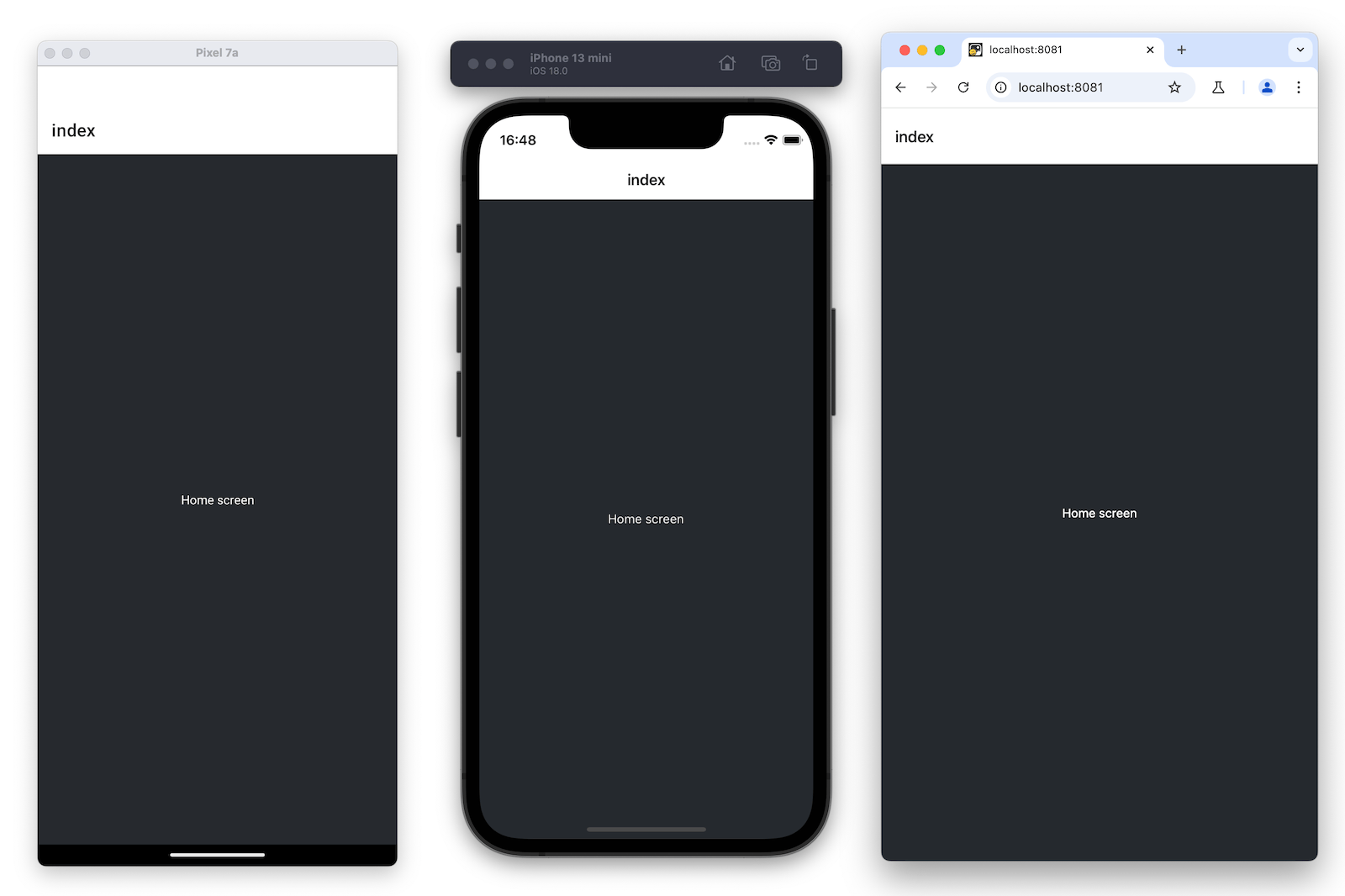
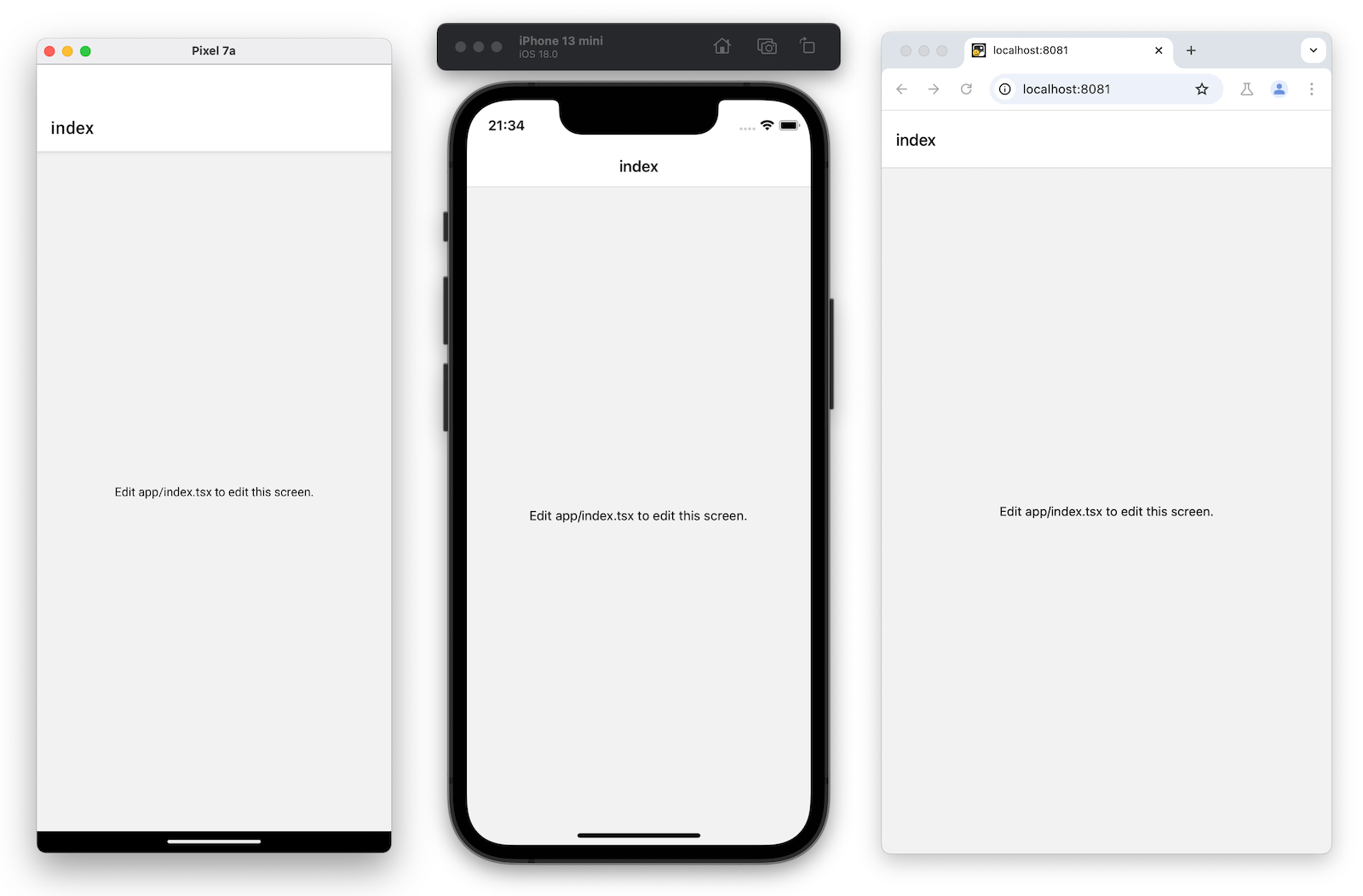
Once it is running on all platforms, the app should look like this:
Edit the index screen
The app/index.tsx file defines the text displayed on the app’s screen. It is the entry point of our app and executes when the development server starts. It uses core React Native components such as and to display background and text.
Styles applied to these components use JavaScript objects rather than CSS, which is used on web. However, a lot of the properties will look familiar if you’ve previously used CSS on web. Most React Native components accept a style prop that accepts a JavaScript object as its value. For more details, see Styling in React Native.
Let's modify app/index.tsx screen:-
Import StyleSheet from react-native and create a styles object to define our custom styles.
-
Add a styles.container.backgroundColor property to with the value of #25292e. This changes the background color.
-
Replace the default value of with “Home screen”.
-
Add a styles.text.color property to with the value of #fff (white) to change the text color.
imp
ort { Text, View, StyleSheet } from 'react-native'; export default function Index() { return ( Home screen ); } const styles = StyleSheet.create({ container: { flex: 1, backgroundColor: '#25292e', alignItems: 'center', justifyContent: 'center', }, text: { color: '#fff', }, });
> React Native uses the same color format as the web. It supports hex triplets (this is what #fff is), rgba, hsl, and named colors, such as red, green, blue, peru, and papayawhip. For more information, see Colors in React Native.
Summary
> > Chapter 1: Create your first app > > > > We’ve successfully created a new Expo project, used React Native core components, and are ready to develop our StickerSmash app. > > > > >
10
Join Conversation
React Native
A community for React Native developers to learn, build, and scale mobile applications.
Discuss:
• React Native fundamentals
• Expo & Native CLI
• Android & iOS development
• UI/UX design systems
• APIs & backend integration
• Firebase & Supabase
• AI integrations
• Performance optimization
• State management
• Authentication systems
• Real-world app architecture
• Debugging & deployment
Perfect for beginners, students, and advanced mobile engineers building production-ready apps.
Show more
May 18, 2026
Public
7
Members
1
Moderators